How to bypass the Windows 11 TPM 2.0 Requirement
Trusted Platform Module version 2.0 (TPM 2.0) is hardware security chip built into your computer. It stores encryption keys, passwords, and digital certificates safely. It is designed to protect your device from malware and unauthorized access.
TPM 2.0 is required to run Windows 11, as an important building block for security-related features. TPM 2.0 is used in Windows 11 for a number of features, including Windows Hello for identity protection and BitLocker for data protection.
When Windows 11 is being installed, it checks to see if your computer has TPM 2.0 chip. If your computer does not have TMP 2.0 chip, Windows 11 will not install. However, there is a way to bypass the check and install Windows 11 anyway.
Step 1
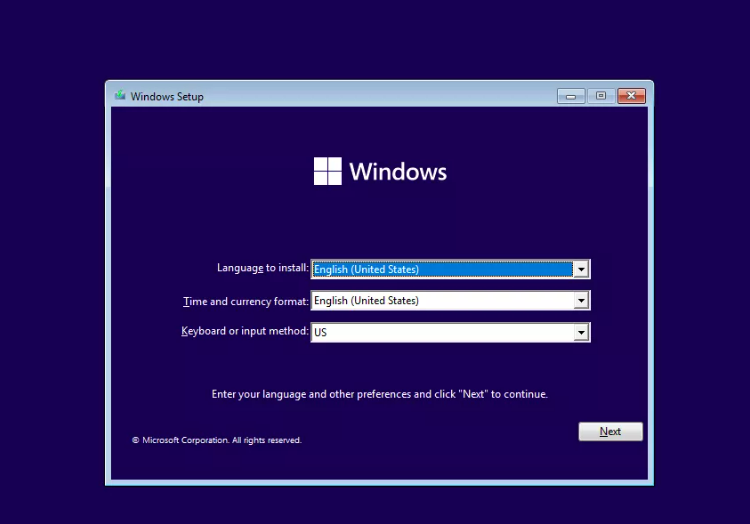
Boot off your Windows 11 install USB, and don't click 'Next'
Step 2
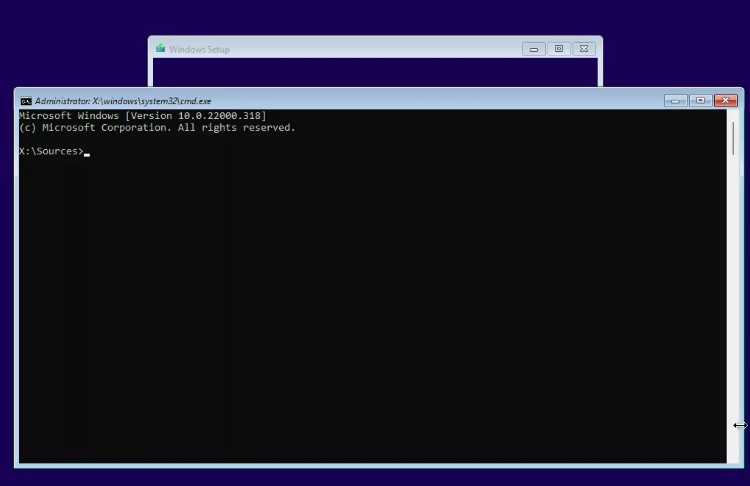
Press SHIFT + F10 to launch the command prompt.
Step 3
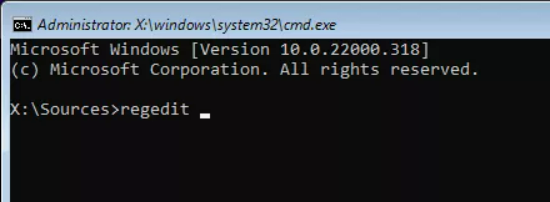
Type regedit and hit Enter to launch registry editor.
Step 4
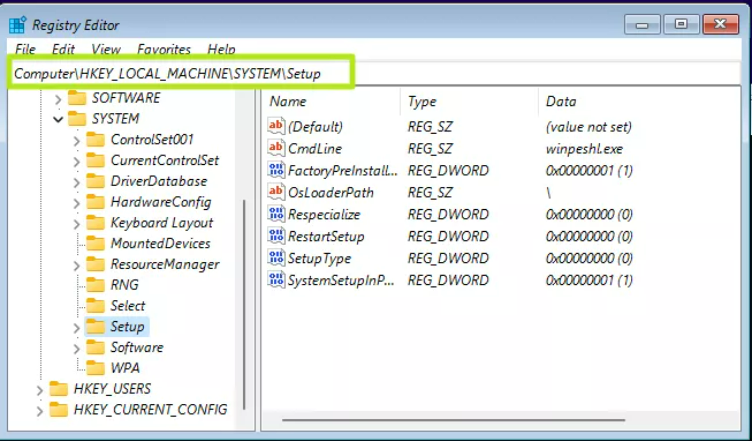
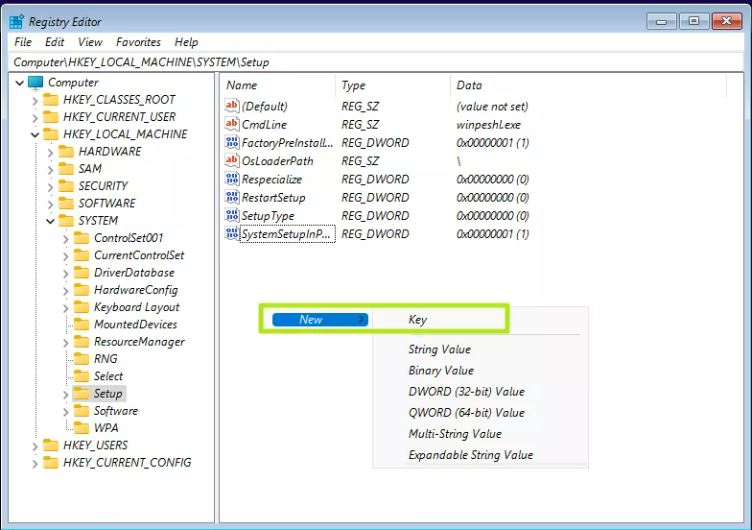
Navigate to HKEY_LOCAL_MACHINE\SYSTEM\Setup.
Step 5
Create a new registry key under Setup and name it LabConfig. To create a registry key, right click in the right window pane and select New->Key. Then enter the key name.
Step 6
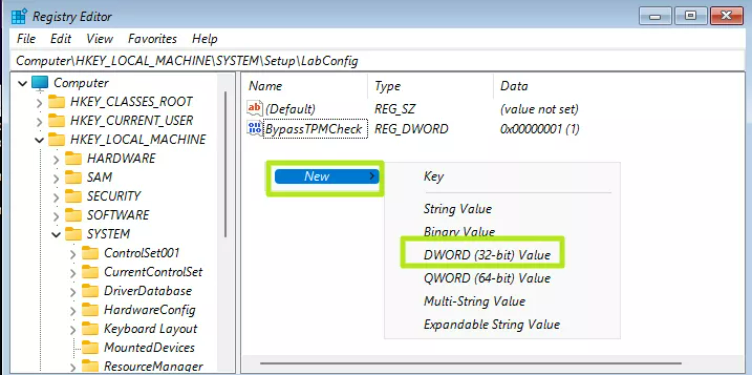
Within the LabConfig key select “New > DWORD (32-bit) value” and create the following values:
- BypassTPMCheck
- BypassRAMCheck
- BypassSecureBootCheck
When the DWORDs are created, double click each one and set the value to "1"
Step 7
Close regedit and close the Command Prompt and install Windows like normal.
References